Using Gemini from China: web, AI Studio, Gemini CLI and phone, step by step
To use Gemini from China, buy an overseas static IP (for example the US Gemini ISP), install the Proxy302 client on your computer, sign in and turn on One-click boost.
Web app and AI Studio: in My IPs click Open browser for that IP and open gemini.google.com or AI Studio in the new window.
Gemini CLI: first use that IP as the system proxy, then set HTTPS_PROXY=http://127.0.0.1:17890 in the terminal and run gemini. Phone: on iPhone chain the static IP (SOCKS5) behind your own node in Shadowrocket, or use the client's LAN port on your computer. With the same Google account, the computer and the phone use the same IP.
Example addresses (203.0.113.0/24), not real exits
01 / 15Two legs have to work
One Gemini account, one fixed overseas static IP; the China leg is handled by the client's One-click boost.
01
Two legs have to work
Leg one runs from China to overseas. Connecting from a mainland network straight to an overseas proxy address is often unstable: the switch is on but the page keeps spinning. The Proxy302 client's One-click boost keeps this leg stable for you.
Leg two is the fixed overseas exit. Gemini sees the static IP you bought, not your local network. Keep one account on one IP and use that same IP on the web, on the computer and on the phone.
So the order is: buy the IP → install the client and turn on One-click boost → connect the way you use Gemini → check on ipinfo.io.
02
Before you start: the IP and the client
Step 1: buy an overseas static IP
For Gemini, choose the Gemini ISP: dedicated to you, and a renewal usually keeps the same IP. Pick a country Gemini supports (the US is the common choice) and keep the protocol on HTTP (command-line tools only accept HTTP). If you already have a static IP, use that one.
Expected result The IP appears under My proxies in the console.
Step 2: install the client and turn on One-click boost
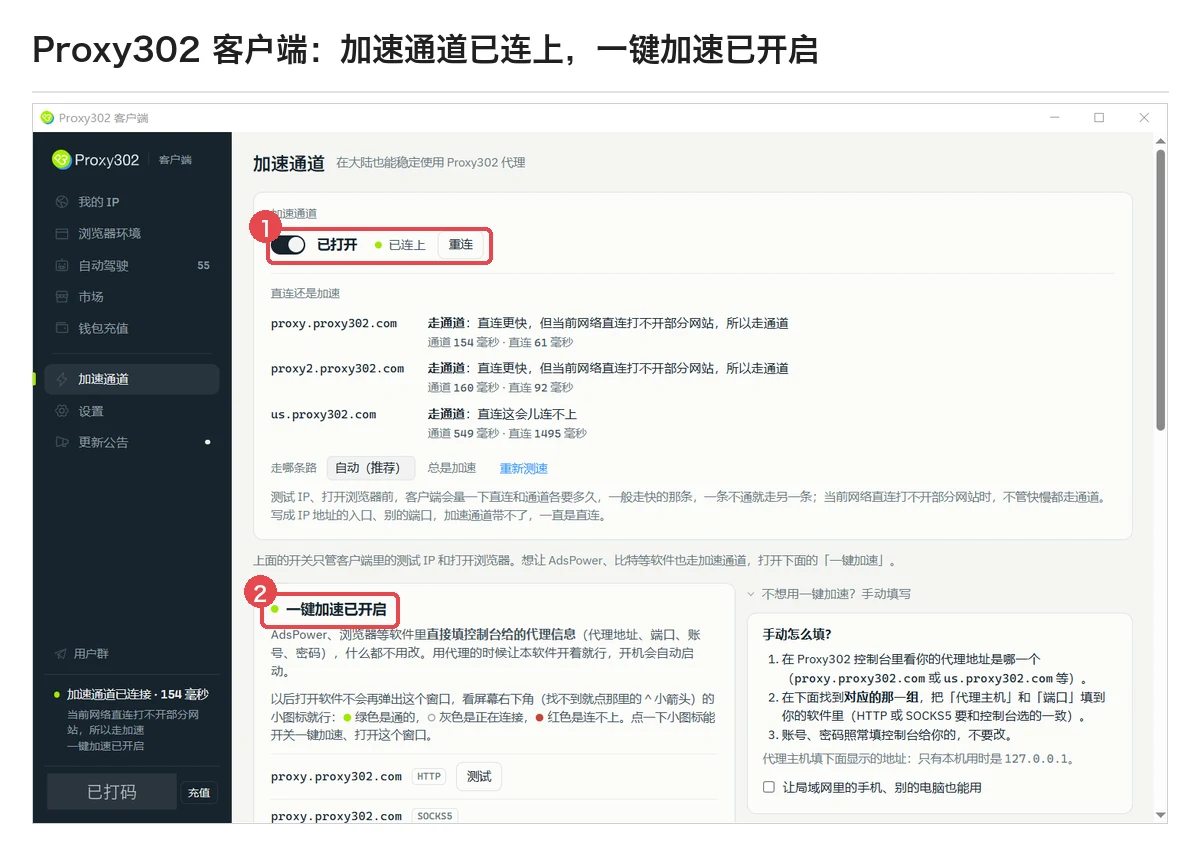
Download the Windows or Mac client and sign in with your Proxy302 account. Click Relay on the left, then turn on One-click boost; when the computer asks for confirmation, click Yes (on a Mac, enter your login password). Keep the client running while you use Gemini.
Expected result You see One-click boost is on, and My IPs lists your IP.
Before continuing If antivirus software blocks it, allow the hosts change, restore any quarantined files and add the client's install folder to the trusted list.
03Step 2: Relay connected and One-click boost on (Windows client in Chinese, some details masked)Open full-size figure04
① gemini.google.com and AI Studio in the browser
Click Open browser in My IPs
Find the IP and click Open browser. The client opens a new Chrome window that uses the IP you bought. Sign in from this window from now on.
Expected result ipinfo.io in this window shows your IP and country.
Open gemini.google.com and sign in
Open gemini.google.com in the same window and sign up or sign in. Do not sign in to the same account from another browser.
Expected result Gemini opens normally.
05
② Make other apps on the computer use this IP too
Make this IP the system proxy
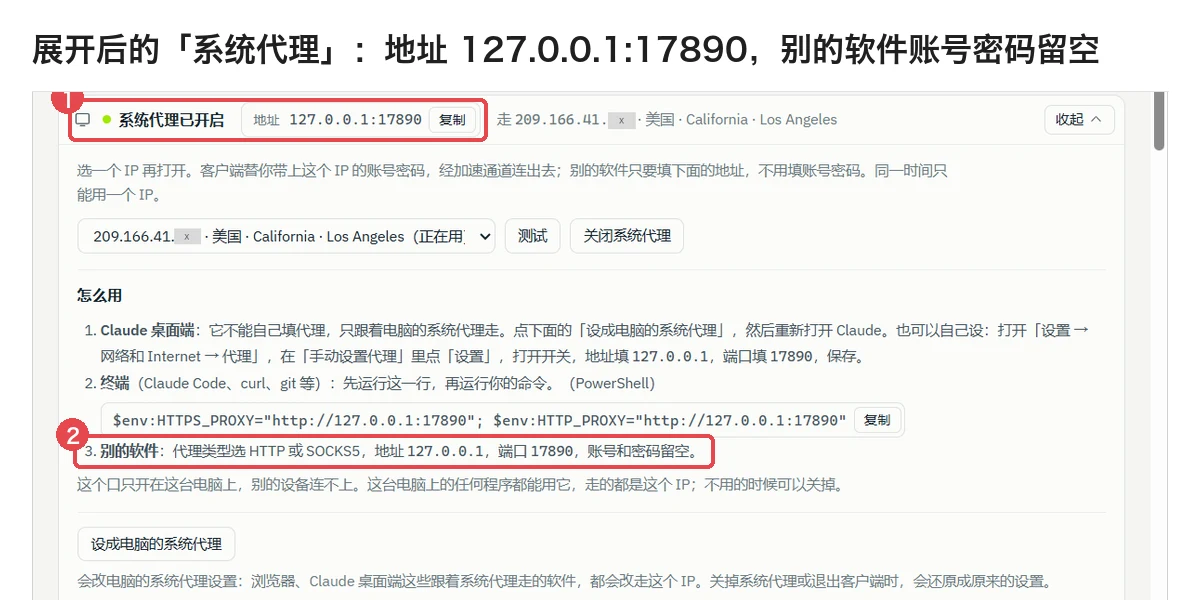
In My IPs click More on the IP → Use as system proxy → Turn on, then click Set as this computer's system proxy. The Gemini web app and AI Studio are fine in the Open browser window; set the system proxy only if you want other browsers or apps on the computer to use this IP.
Expected result The client shows the system proxy is on at 127.0.0.1:17890 (use what your client shows).
Before continuing Once it is the system proxy, every app that follows the system proxy uses this IP; turning the system proxy off or quitting the client restores the old setting.
Restart the apps you need
Quit the browser or app that should use the proxy completely, then open it again.
Expected result ipinfo.io in that browser shows your IP.
06Using the system proxy with desktop apps and the terminal (Windows client in Chinese, some details masked; newer versions word the notes slightly differently)Open full-size figure07
③ Gemini CLI
Turn the system proxy on first
As in step ② above, use this IP as the system proxy and turn it on. The terminal uses this local address, with no username or password.
Set HTTPS_PROXY, then run gemini
Gemini CLI has no --proxy flag; use the standard HTTPS_PROXY environment variable with the HTTP address. You can also put the line in ~/.gemini/.env. Google has moved personal-subscription users to the Antigravity CLI, whose documentation has no proxy section, so test the exit before relying on it.
Expected result gemini signs in and returns results.
iPhone with your own node: chain the static IP in Shadowrocket
In Shadowrocket tap +, choose SOCKS5, enter the address, port 3333, username and password of this IP, and switch off UDP relay. Tap the node's ⓘ and under Proxy Via pick your own node that already opens overseas sites. On the home screen set Global Routing to Config, select the static IP node and switch it on.
Expected result ipinfo.io in Safari shows your IP; then open the Gemini app and sign in.
No node of your own: use the client on your computer
On the client's Relay page open the manual set-up and tick the option that lets phones and other computers on the local network use it; note the computer's LAN address and the port on the HTTP line. On the iPhone go to Settings → Wi-Fi → ⓘ for this network → Configure Proxy → Manual, enter the computer's address and that port, turn on Authentication and enter this IP's username and password.
Expected result While the phone and the computer share the Wi-Fi, the Gemini app uses the IP you bought.
Before continuing This only applies to this Wi-Fi; on mobile data the phone goes direct.
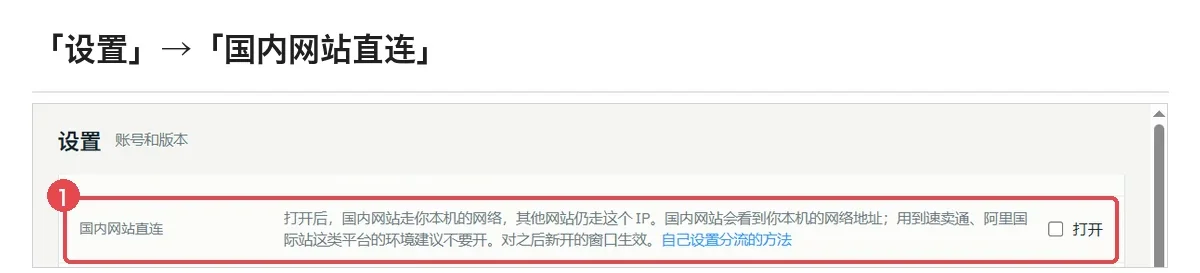
In the client's Settings turn on Chinese sites direct: Chinese sites use your local network while overseas sites such as Gemini keep using the static IP. It applies to windows opened afterwards; if you use the system proxy, turn it off and on once.
Check Does Relay show connected? Are you in the window opened by Open browser?
Fix Turn on One-click boost again and click Yes; open a new window with Open browser. Close any other acceleration software first.
Gemini says it isn't available in your region
Check Does ipinfo.io in the same window show the country you bought?
Fix If not, the traffic isn't using the IP: use the Open browser window on the web, and for desktop apps confirm the system proxy is set and restart them.
Authentication failed or HTTP 407
Check Has the IP expired? Did you copy an extra space with the username or password?
Fix Check the status and credentials under My proxies; if it still fails, open a ticket in the console with a screenshot.
FAQ
Can I use Gemini with One-click boost alone, without buying an IP?
No. One-click boost only stabilises the China-to-overseas leg; the exit Gemini sees comes from the static IP you bought.
Can my computer and phone use the same IP at the same time?
Yes. The same username and password work on a computer and a phone at the same time, with no extra purchase; HTTP (2222) and SOCKS5 (3333) can also be used at the same time. The target site may apply its own risk checks to one account on several devices; that is unrelated to the IP.
Does a static IP stop Gemini from banning my account?
No one can promise that. Account risk decisions belong to Google, and no IP can guarantee an account won't be banned. A static IP keeps one account signing in from the same clean exit instead of a different country every day.
Are AI Studio and the Gemini web app available in the same countries?
Not exactly. The list of regions for AI Studio / the Gemini API is shorter than the one for the web app, and the US is on both lists. Check both lists before you buy an IP.
Will Chinese sites get slower?
With Chinese sites direct on, Chinese sites use your local network at their usual speed.
How to set up a proxy for the Gemini web app, Google AI Studio and the Gemini API, and how to diagnose common errors. A proxy does not change Google's terms.
Whether Gemini works depends on the separate web app and API region lists, the account region, the payments profile country, the account type and age, and the network address a request leaves from. Who decides each one, and an order for checking them.
Proxy302 client UI (checked against 3.5.5 by the client team)
Product observation · Confirmed on:
Checked by the client team on 22 November against the 3.5.5 interface: Relay, One-click boost, One-click boost is on, My IPs, Open browser, More → Use as system proxy → Turn on → Set as this computer's system proxy; the system proxy defaults to 127.0.0.1:17890 (another port is used if it is taken; follow the client); manual set-up, the option that lets phones and other computers on the local network use it, Settings → Chinese sites direct. Screenshots are the Windows client (3.5.1) on a test computer.
Proxy302 guide: Gemini CLI proxy
Product observation · Confirmed on:
Facts checked in the on-site Gemini CLI guide: there is no --proxy flag; use HTTPS_PROXY (it can go in ~/.gemini/.env) with the HTTP address; personal-subscription users have moved to the Antigravity CLI, whose documentation has no proxy section.
Ready to try it?
Create an account, top up once, then pick rotating residential, static ISP or datacenter IPs and have one running in your browser within minutes.