ISP proxies (static residential)
Fixed static ISP proxies: a residential-grade IP that stays the same for the whole term. For social accounts, stores and AI tools. HTTP and SOCKS5.
View options and pricing ×

Import the Proxy302 IP into MostMate's Proxy Management, check it, then pick it with Select proxy when you create an environment.
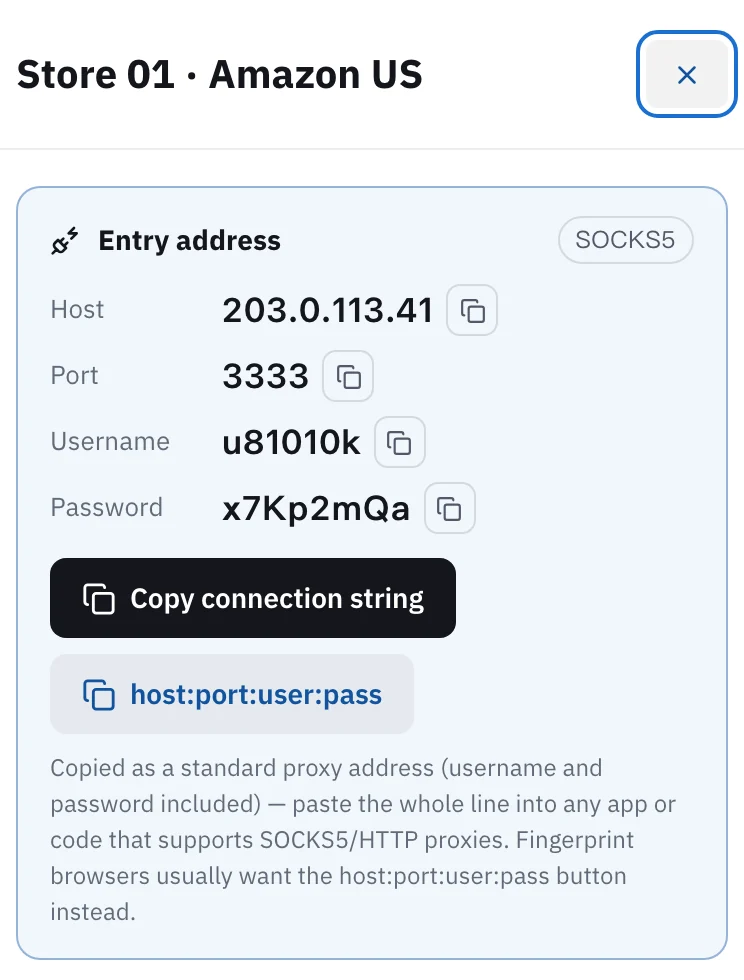
In Proxy302 My assets, open the IP you want, note its protocol and click the host:port:user:pass button. In MostMate, click 代理管理 (Proxy Management) on the left, then 导入代理 (Import proxy). Paste the line into 代理列表 (Proxy list) with the protocol in front, as socks5://host:port:user:pass or http://host:port:user:pass, and click 导入代理 (Import proxy). Click the magnifier under 操作 (Actions) on its row: when 出口 IP (Exit IP) shows a country and a tick, the proxy works. Then click 创建环境 (Create Environment), set 代理设置 (Proxy settings) to 选择代理 (Select proxy), pick this proxy and click 确定 (OK). For rotating residential and per-traffic static residential, the host is proxy.proxy302.com, HTTP uses port 2222, SOCKS5 uses port 3333, and the same username and password work for both.
Updated:
MostMate puts each account in a separate browser environment with its own cookies, fingerprint and proxy. Its help center says the usual practice for multi-account work is one dedicated proxy per environment, so different environments go through different IPs.
MostMate has three proxy modes: No proxy, Custom proxy and Select proxy. Below, you first import the Proxy302 IP into Proxy Management and check it, then pick it with Select proxy, so every proxy is tested before you use it.
MostMate has Windows and macOS clients and a free plan, enough to go through every step below. The MostMate screenshots were provided by MostMate (client 1.11.2, Chinese interface), so the labels are given in Chinese with the English name in brackets. Addresses in the screenshots are blurred, and the import box shows demo values.
Open My assets in the console and click the IP for this environment. A tag next to the entry address shows HTTP or SOCKS5; note it, because a static IP bought per IP works only with the protocol chosen at purchase. Click the host:port:user:pass button to copy one line. For rotating residential and per-traffic static residential, the host is proxy.proxy302.com, HTTP uses port 2222, SOCKS5 uses port 3333, and the same username and password work for both.
Open MostMate, click 代理管理 (Proxy Management) on the left, then 导入代理 (Import proxy) at the top. Paste the line into 代理列表 (Proxy list) and put the protocol in front: socks5:// for SOCKS5, http:// for HTTP, for example socks5://203.0.113.41:3333:u81010k:x7Kp2mQa. For rotating residential, write http://proxy.proxy302.com:2222:user:pass or socks5://proxy.proxy302.com:3333:user:pass. Put one proxy per line, then click 导入代理 (Import proxy) at the bottom right.
The proxy now appears in the list, with its country and protocol under 代理信息 (Proxy info). Click the magnifier icon under 操作 (Actions) on its row and MostMate looks up the proxy's exit.
Expected result 出口 IP (Exit IP) shows a country and a green tick, and 代理信息已准备好 (Proxy info ready) pops up at the top right.
Click 创建环境 (Create Environment) at the top left. Set 代理设置 (Proxy settings) to 选择代理 (Select proxy), pick the proxy you imported from the list below it, and click 确定 (OK) at the bottom of the page. Keep language, time zone and geolocation on 基于IP配置 (Based on IP) so they follow the proxy's IP.
The new environment appears in 环境管理 (Profile Management). Click 打开 (Open) on it and a separate browser window opens. To be sure, open ipinfo.io in that window and check that the country is the one you bought.
Stores, ad accounts, social media, anything you stay signed in to for a long time: buy a static ISP IP, one per environment. It does not change during the term, so the platform sees the same place every time.
Scraping, price checks, looking at pages from other countries: use rotating residential, billed by traffic. In MostMate it goes in through 导入代理 (Import proxy) too. The host is proxy.proxy302.com, port 2222 for HTTP or 3333 for SOCKS5, and you copy the username and password from My assets.
A new user who signs up to Proxy302 through a partner link or an invite link gets an extra 20% on the first top-up made within 120 days of binding, up to US$50. The bonus is credited to the wallet as its own entry once the top-up arrives.
The host:port:user:pass line from Proxy302 has no protocol in it. Put the same protocol as in My assets in front and you get the format MostMate imports in its own screenshot: protocol://host:port:user:pass.
Copy the line again and paste it with no extra spaces. Then check that the protocol and port match: for an IP bought per IP, use the protocol shown in My assets; for rotating residential, HTTP goes with 2222 and SOCKS5 with 3333. Finally check that the IP has not expired, or for rotating residential that you still have traffic.
Yes. Set 代理设置 (Proxy settings) to 自定义代理 (Custom proxy) and enter protocol, address, port, username and password there. MostMate supports SOCKS5, HTTP, HTTPS and SSH; for Proxy302 choose SOCKS5 or HTTP, the same as in My assets.
On a restricted network, open Proxy302 Fast Connect and click 「一键加速」 (One-click boost) first, import the proxy as it is, then click the magnifier to check it. The Fast Connect guide is under Related setups.
If the account must keep one IP for a long time, yes. One static ISP IP per environment is the simplest. After importing, put the same note in MostMate's 备注 (Notes) column as in Proxy302 so they match later.
Fixed static ISP proxies: a residential-grade IP that stays the same for the whole term. For social accounts, stores and AI tools. HTTP and SOCKS5.
View options and pricingReal household IPs in 195+ countries; the Premium line adds state and major-city targeting. A new IP on every new connection, or keep sticky sessions. From US$1.50/GB, US$1.35/GB at 100 GB. HTTP and SOCKS5.
View options and pricingWhen a direct connection to your proxy fails or keeps dropping: download the free Fast Connect 2.3, click 「一键加速」 (One-click boost), and fill in your proxy details exactly as given.
Set up a proxy in AdsPower, BitBrowser, GoLogin, Kameleo, Hidemium or GenLogin: one IP per profile, where each field goes, and what a failed proxy check really means.
Official documentation · Confirmed on:
Official documentation · Confirmed on:
Work at MostMate? Let's co-market: joint guides, partner-page listings and a +20% first top-up code for your users. Telegram @Proxy302_Support · partners@reply.proxy302.com
Create an account, top up once, then pick rotating residential, static ISP or datacenter IPs and have one running in your browser within minutes.