ISP proxies (static residential)
Fixed static ISP proxies: a residential-grade IP that stays the same for the whole term. For social accounts, stores and AI tools. HTTP and SOCKS5.
View options and pricing ×

Copy four details from Proxy302, paste them into Hidemium’s Your Proxy tab, and create the profile once the check passes.
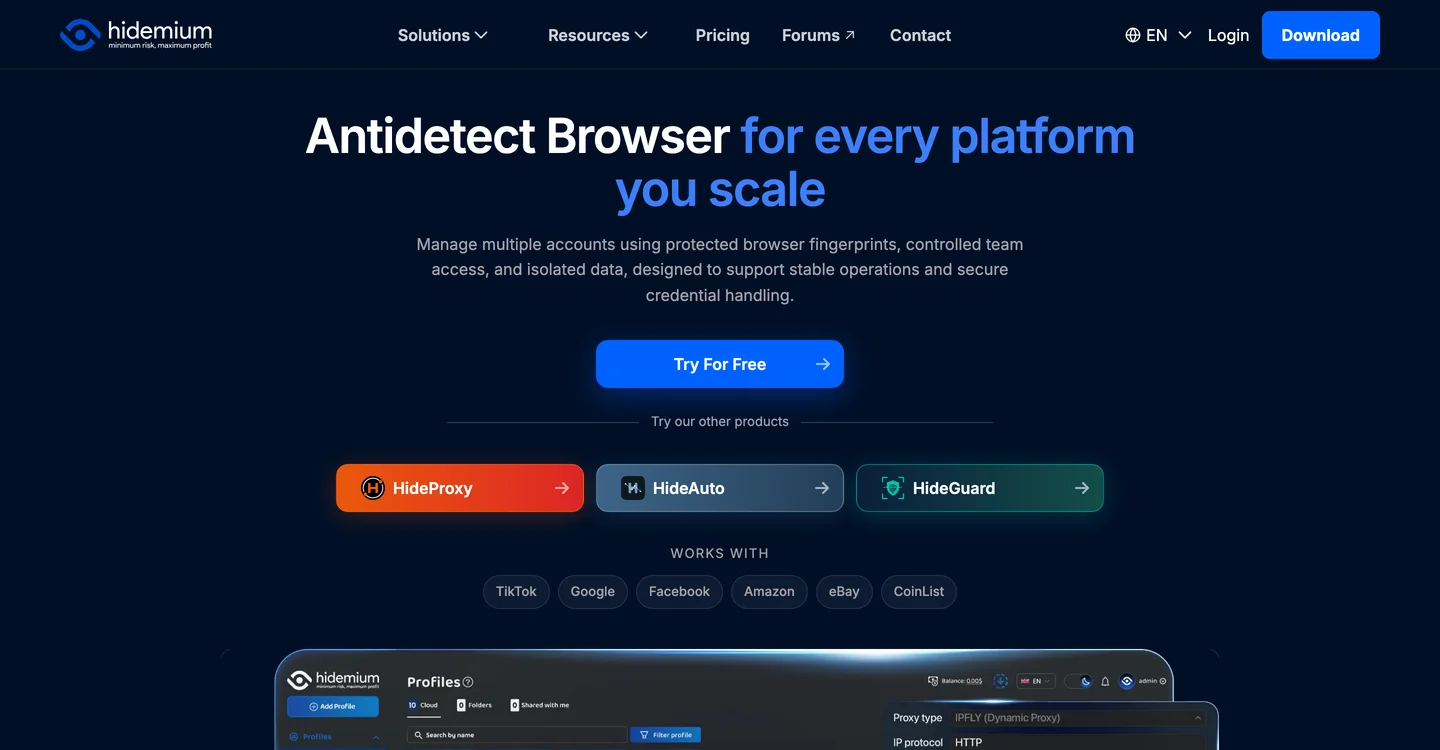
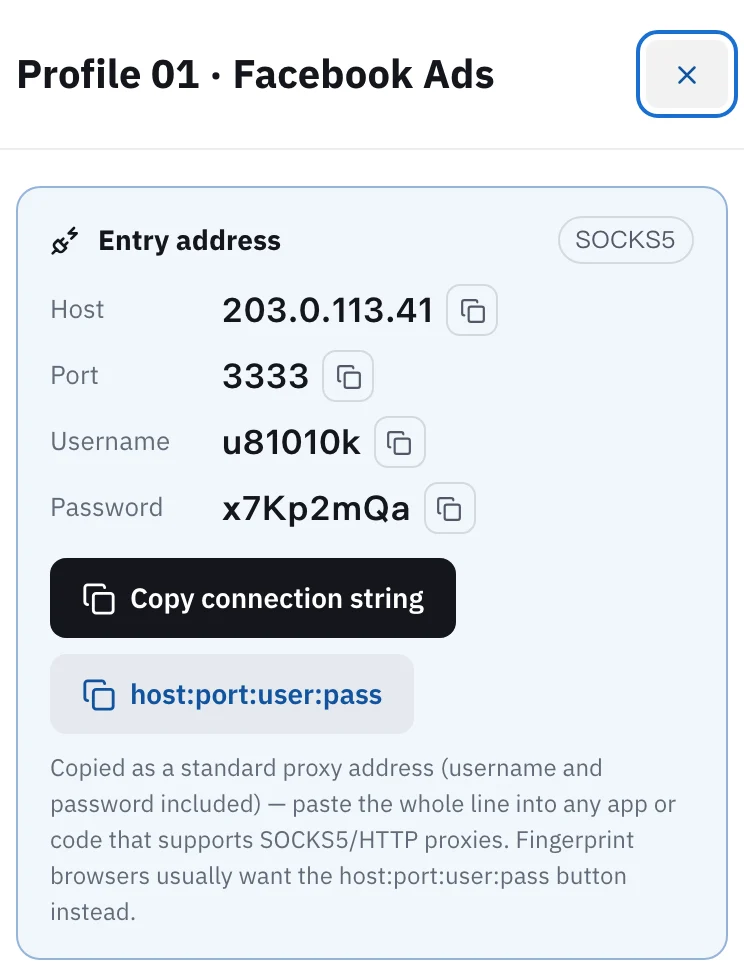
In Proxy302 My assets, open the IP you want to use and note the host, port, username and password. In Hidemium click Add Profile, go to 2. Proxy on the left, choose Your Proxy, set Proxy Type to HTTP or SOCKS5, fill in IP address, Port, Username and Password, and click Check Proxy. When it passes, click Create profile, then Start the profile from the Profiles list. If an account must keep the same IP, give its profile a static ISP IP.
Updated:
Every Hidemium profile is a separate browser environment with its own fingerprint. Without a proxy, all of them connect from your own network, so websites see one IP for every account.
The Proxy page has five tabs along the top: Hidemium Proxy, Your Proxy, Without proxy, Proxy free and Other proxy. Proxy302 IPs go under Your Proxy. The steps below use one static IP per profile.
Open My assets in the Proxy302 console and click the IP for this profile. The card lists host, port, username and password, each with a copy button. The protocol (HTTP or SOCKS5) is in the top-right corner. You will match it in Proxy Type.
On the Profiles page, click Add Profile at the top left. In the Create Profile window, click 2. Proxy in the left menu, then choose the Your Proxy tab at the top.
Set Proxy Type to HTTP or SOCKS5 to match the Proxy302 card. Put the host in IP address, the port in Port, then the username and password. Hidemium’s guide uses HTTP, us.proxy302.com and 2222 as its example. Use the values from your own card.
When all four fields are filled, click Check Proxy. If it passes, click Create profile at the bottom of the window. To open the profile straight away, click Create and run profile instead.
Back on the Profiles list, the new profile’s Proxy column shows the proxy address and port. Click Start on that row, open ipinfo.io in the browser, and confirm the IP is the Proxy302 one.
Facebook ad accounts, seller accounts and social accounts, where a profile stays logged in to one account: buy a static ISP IP, one per profile. The IP does not change during the term, and a term of 30 days or more is a dedicated IP.
Scraping, price checks and looking at search results in other countries: use rotating residential. It is billed by traffic, the entry is proxy.proxy302.com, HTTP on port 2222 and SOCKS5 on port 3333.
Hidemium’s blog has an article on setting up Proxy302, and the screenshots above come from it. If you do not have a Hidemium account yet, you can sign up on its site.
New Proxy302 users who sign up through a partner link or an invite link get an extra 20% on their first top-up, up to US$50, if it comes within 120 days of signing up. The bonus goes into the wallet after the top-up arrives.
Proxy Type offers both. A static IP gets its protocol when you buy it, and each IP has only one. Use the one written in the top-right corner of the Proxy302 card, and pick the same in Hidemium.
Copy the four values again without spaces. Make sure Proxy Type and Port match what My assets shows, then check whether the IP has expired.
For accounts that must stay stable, give each profile one static ISP IP. For research and scraping with no login, one rotating residential plan can serve several tasks at once.
Fixed static ISP proxies: a residential-grade IP that stays the same for the whole term. For social accounts, stores and AI tools. HTTP and SOCKS5.
View options and pricingReal household IPs in 195+ countries with state and city targeting. Rotate on every request or keep sticky sessions. From US$1.50/GB, US$1.35/GB at 100 GB. HTTP and SOCKS5.
View options and pricingOfficial documentation · Confirmed on:
Create an account, top up once, then pick rotating residential, static ISP or datacenter IPs and have one running in your browser within minutes.